


New Feature in My First New York: Pay a Person
Pay a Person: a digital service that allows you to send money directly from your First New York checking account* to another person.
Table of Contents:
The Pay a Person functionality is streamlined into the My First New York online banking platform for easy use. Enjoy First New York security and convenience when moving money directly in the platform. All you need to send money is the mobile number or email address of the recipient! If you do not already use My First New York, you can find instructions here to get you started.
Enjoy the following features:
- Send money using the phone number or email address of the recipient
- Use the Auto Pay feature to schedule and manage recurring payments with ease
- Pay people inside and outside the First New York membership
- Inclusion of security questions and transaction limits for added protection
- Text and email notifications on your money’s movement
Scroll for step by step instructions.
Follow These Easy Steps to Get Started:
Navigate to Pay a Person.
For mobile devices, tap the icon on the bottom right side of your screen labeled “Pay a Person.” On desktop, hover over the top navigation tab labeled “My Transfers & Payments.” Click on “Pay a Person.”
Mobile App:

Desktop:

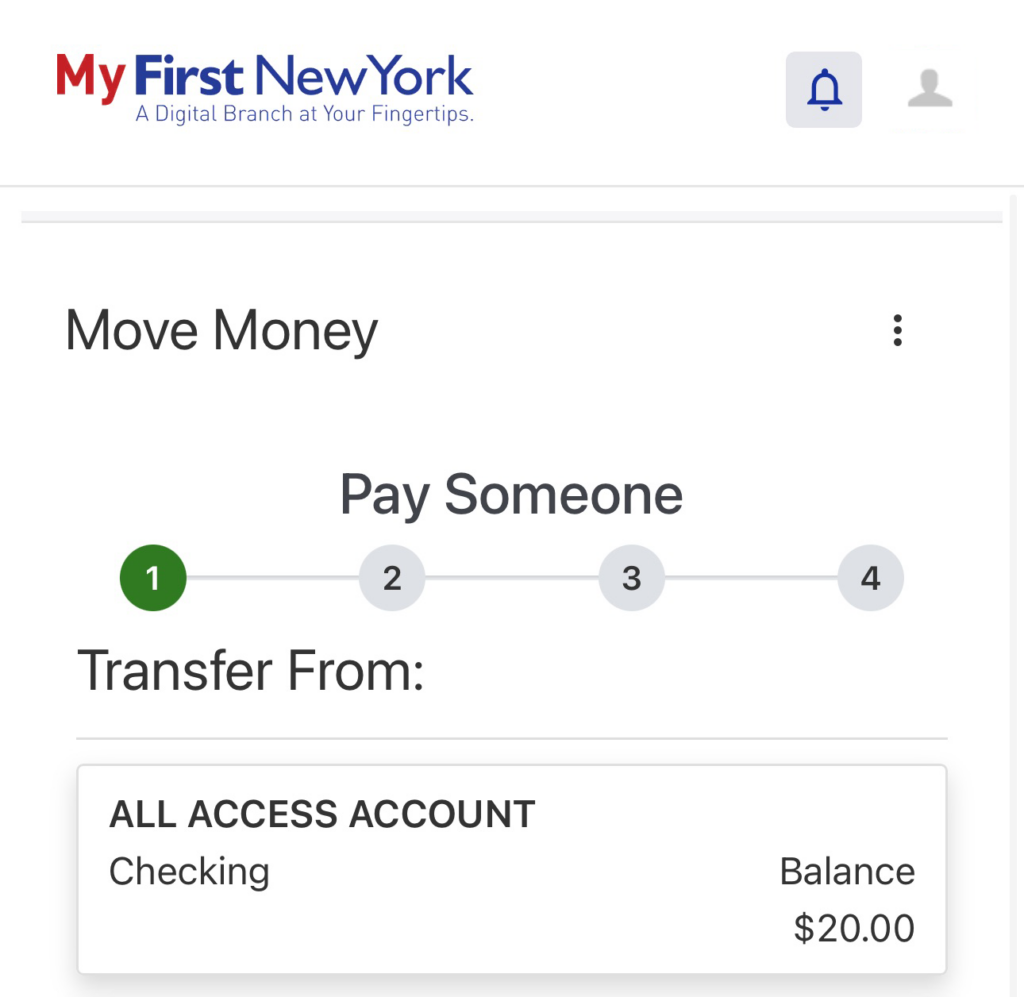
Select the account you wish to transfer from.
You will now see a list of accounts. Click or tap on the checking account you wish to pull funds from. Please note, this must be an eligible checking account.*
Mobile App:
Desktop:

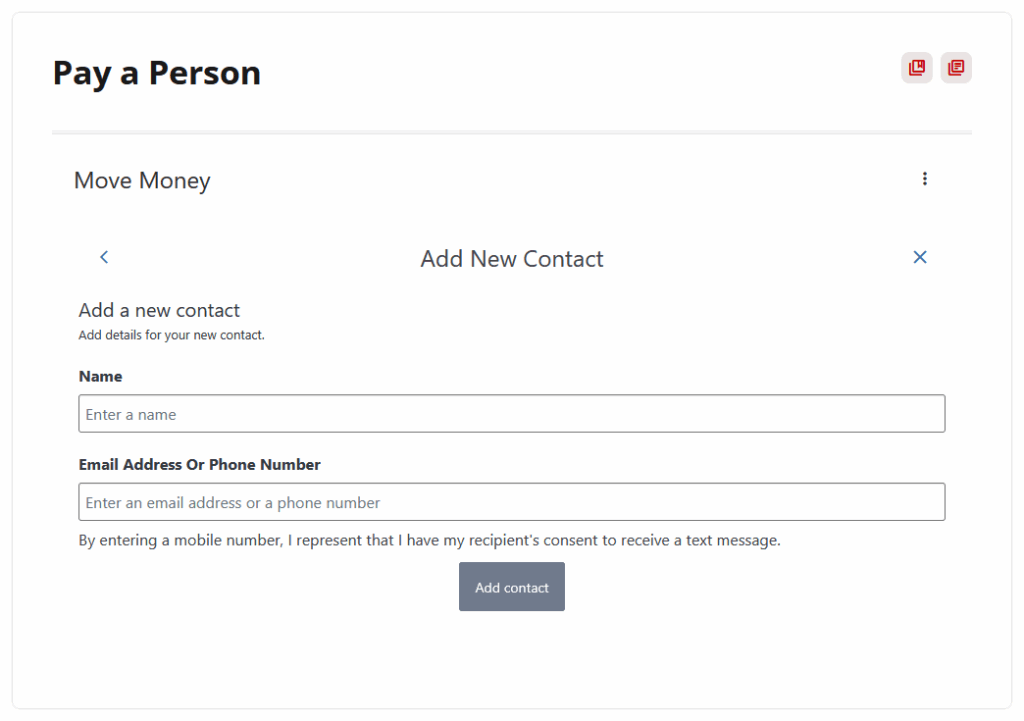
Add or select the person you want to send money to.
To add a new contact, click or tap “+ Add New Contact” on the right side of the screen. Fill in the name of the person you will be sending funds to and enter either a phone number or email address. The type of notification your contact will receive regarding this transfer will align with your chosen contact method for this person. Then click/tap the “Add contact” button.
If your contact is already listed, search and select the appropriate one.
Mobile App:

Desktop:
Enter the amount and date for the payment.
Type in the amount of money you want to send in the first text field. Then, click/tap on the calendar icon to select a date if you wish to schedule a payment for the future. If you wish to schedule a recurring payment, turn the AutoPay slider to “ON.” This will reveal frequency options including weekly, bi-weekly, monthly, etc. You will also be prompted on the duration of the transaction. Select the number of payments you wish to complete or keep the default selection of “Until I change or Cancel It.” When you are happy with your parameters, click/tap continue.
Mobile App:

Desktop:

Add a message and security questions.
At this point, you can add an optional message to go along with your payment that only the receiver will see. For an added layer of security you will also be prompted to ask them a question only they would know. The question should be something that the recipient will know the answer to, but not something that has an obvious answer or is easy to guess. Enter the answer. (The receiver will have 10 days to enter the correct answer and deposit the funds before they’re returned.) When ready, hit the continue button.
This will then bring you to the confirmation page. Please take a moment and review all fields of your transaction. At this stage you are able to modify all of your selections. Accept the terms and conditions and, if desired, turn on notifications to monitor your transaction. When satisfied with your selections, hit “Submit.” You have now successfully used Pay a Person!
Mobile App:

Desktop:

Notifications:
The contact method you chose in the request will determine what type of notifications will be triggered for the recipient at each step of the transaction. Below are examples of how each type will look to each party.
Email Notification (Payment Creation):

Email Notification (Payment Delivery):

Text Message Notification:

Email Notification:

When the receiver chooses to deposit the funds, they will follow a simple process to receive the transfer.
First, answer the security questions.

Then, deposit funds with a checking account.

Lastly, wait for the funds to process.

Processing times will vary.**
Visit our Frequently Asked Questions page to learn more about Pay a Person. If additional assistance is needed, reach out to the Contact Center at (518) 393-1326, Option 2.
*Eligible checking accounts are Premium Money Market, Money Market, All Access Checking, and Choice Checking.
No Comments